
Run history
Workflow run browsing, run details, rerun with the same inputs and the run cache.
A click on a workflow row on the dashboard opens its run history. The page has two tabs, Run History and Metrics. The URL parameter ?tab=metrics opens the Metrics tab directly. The Metrics page covers it.
Run table
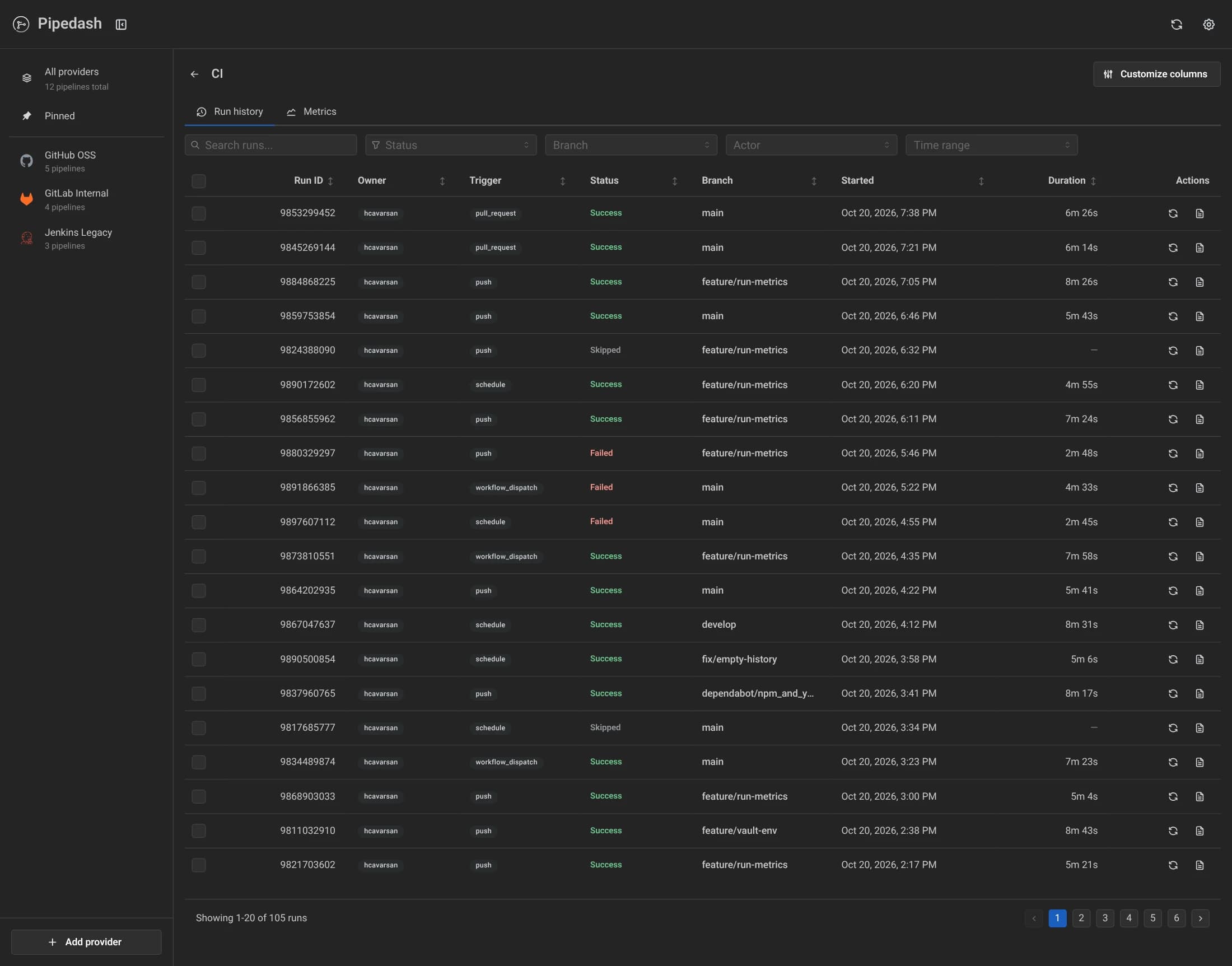
Each row shows one run. The columns come from the provider plugin, plus an Actions column. The defaults are:
| Column | Shown by default | Notes |
|---|---|---|
| Run | Yes | Run or build number. The GitHub plugin hides it by default. |
| Status | Yes | Status badge, described on the Dashboard page. |
| Branch | Yes | Shown when the run has a branch. |
| Started | Yes | Start time. |
| Duration | Yes | Run length. |
| Commit | No | Commit SHA, shown when present. |
| Actor | No | Who triggered the run, shown when present. |
The Customize Columns button reorders or hides columns. Pipedash saves the choice per provider and it overrides the defaults. The button is hidden on mobile.
The filter bar searches the branch, commit SHA, commit message and actor. It also filters by status, branch, actor and time range. Its branch and actor menus list the values found in the loaded page. The URL keeps the state with the keys search, status, branch, actor, dateRange and page.
Sorting happens on the loaded page only and starts with run number descending. The time range supports today, 24h, 7d, 30d and 90d. Any other value shows all runs.
Pagination
Each page shows 20 runs. The first load asks the provider for more than one page so later pages can come from the cache.
- Cache hit: when the cache already covers the requested page, Pipedash serves it from the cache.
- Cache miss: Pipedash fetches runs from the provider up to the next multiple of 100 above
page × 20, capped at 1000. - Footer text:
Showing 1-20 of N runsonce the provider has returned its last run. OtherwiseShowing 1-20 runs.
On mobile the table becomes cards, and scrolling to the bottom loads the next page.
Run details
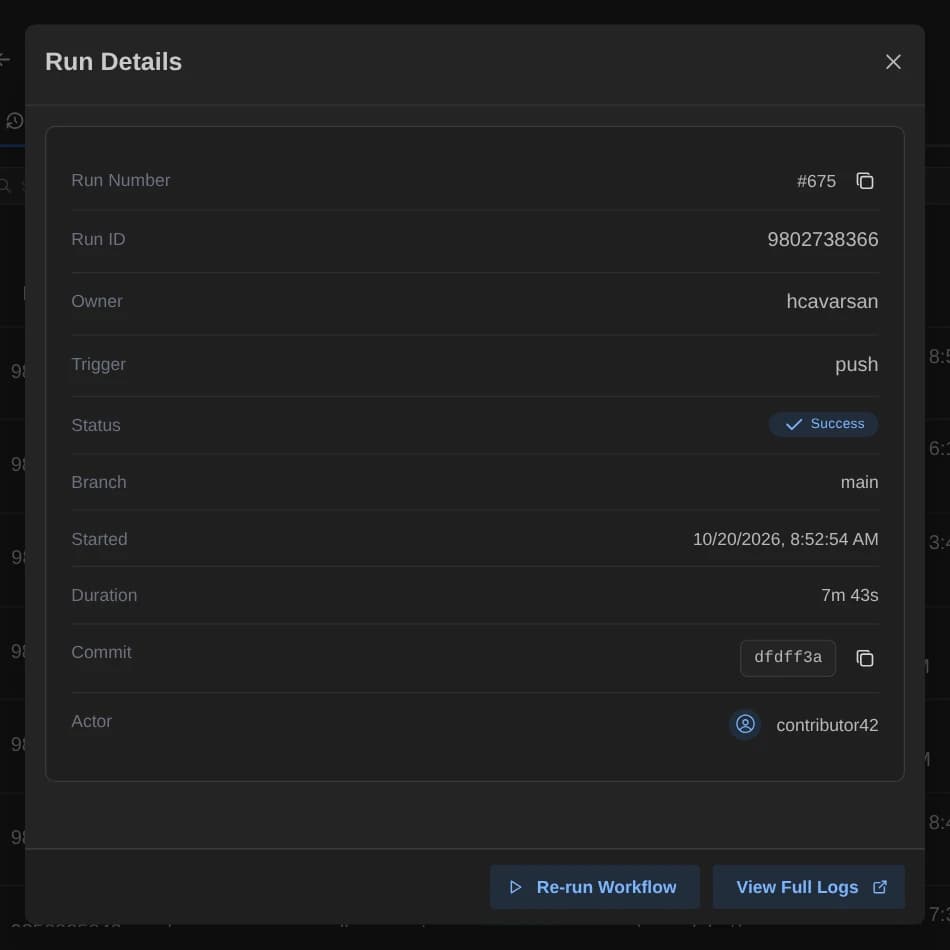
A click on a row, or on the file icon in the Actions column, opens the Run Details dialog. It shows the same columns as the table, one per line, and skips fields without a value. Status and run number always show. If the provider declares no columns, the dialog shows run number, status, branch, duration, start time, end time and actor.
- View Full Logs: opens the provider's log page in a new tab. The dialog shows run fields and no log text.
- Auto refresh: while the run is
runningorpending, the dialog refetches every 10 seconds. The banner text says 5 seconds, which is wrong. - Stop Workflow: replaces the rerun button while the run is active. The Trigger and cancel page covers it.
Rerun
A rerun starts a new run with the inputs of an old one. It has two entry points.
- The refresh icon in the table row opens the trigger form filled with the saved inputs. When the run has a branch and the inputs have neither
branchnorref, Pipedash addsrefwith the branch name. The values stay editable until the Trigger Workflow button starts the run. - The Re-run Workflow button in the Run Details dialog skips the form and triggers the workflow with the saved inputs at once. Pipedash then checks every 2 seconds, up to 5 times, until the new run appears, and opens it.
A running or pending run shows Stop instead of rerun in both views. Stop stays disabled while the run is pending.
Run cache
Pipedash caches runs per pipeline. When it fetches from the provider, it compares the new runs with the cached ones and writes only new, changed and deleted runs.
The cache of one pipeline also clears in these cases:
- Manual clear:
DELETE /api/v1/cache/run-history/{pipeline_id}on the REST API. - Status change: the refresh loop clears a pipeline's runs when its status or last run changes. The Refresh page covers it.
- Trigger and cancel: the desktop app clears the run cache of the pipeline it acts on.
While the page is open, a new run for this pipeline returns the table to page 1. A cancelled run refetches the current page. The Cache page lists the clear-all options.